Visual builder is a user-friendly design environment where brands can create and edit enhanced content using widgets while seeing the final design as they build it. Within the Builder, there are also publication actions and new platform customization settings. We highly encourage you to take advantage of the new Visual Builder for a more streamlined content creation experience! However, you're always welcome to continue building Enhanced Content in the original builder.
Visual Builder Tour
- Enter the desired Project, then the Enhanced Content tab, ensure you’re in the desired collection, and you'll see the Visual Builder button.

- Many of the same actions from the original builder are still available in Visual Builder. You can use Layout Assistant, AI Alt Text, create Collections, Copy content, add products, Preview, and Publish inside the Visual Builder. Hover over each icon to reveal its action.

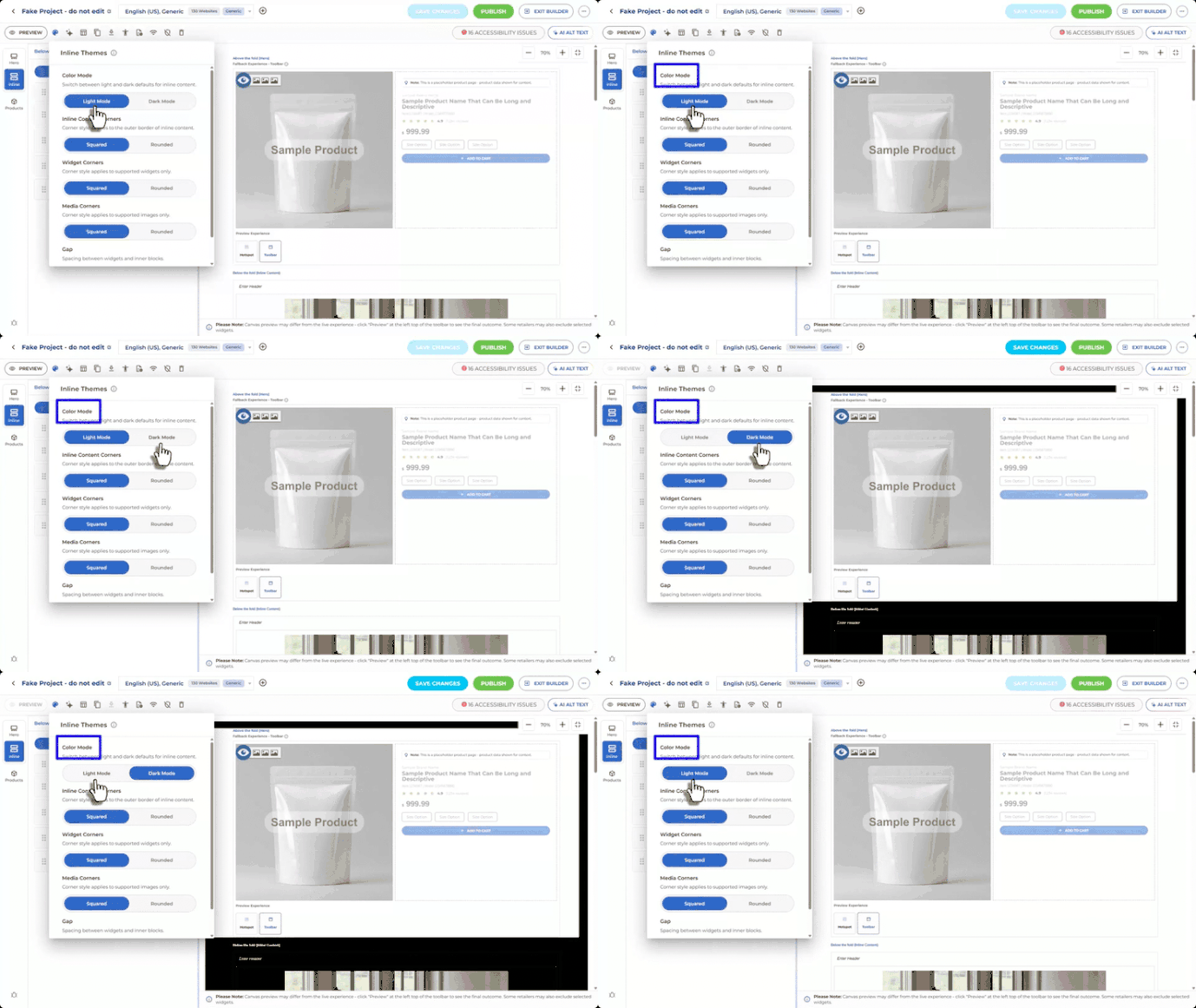
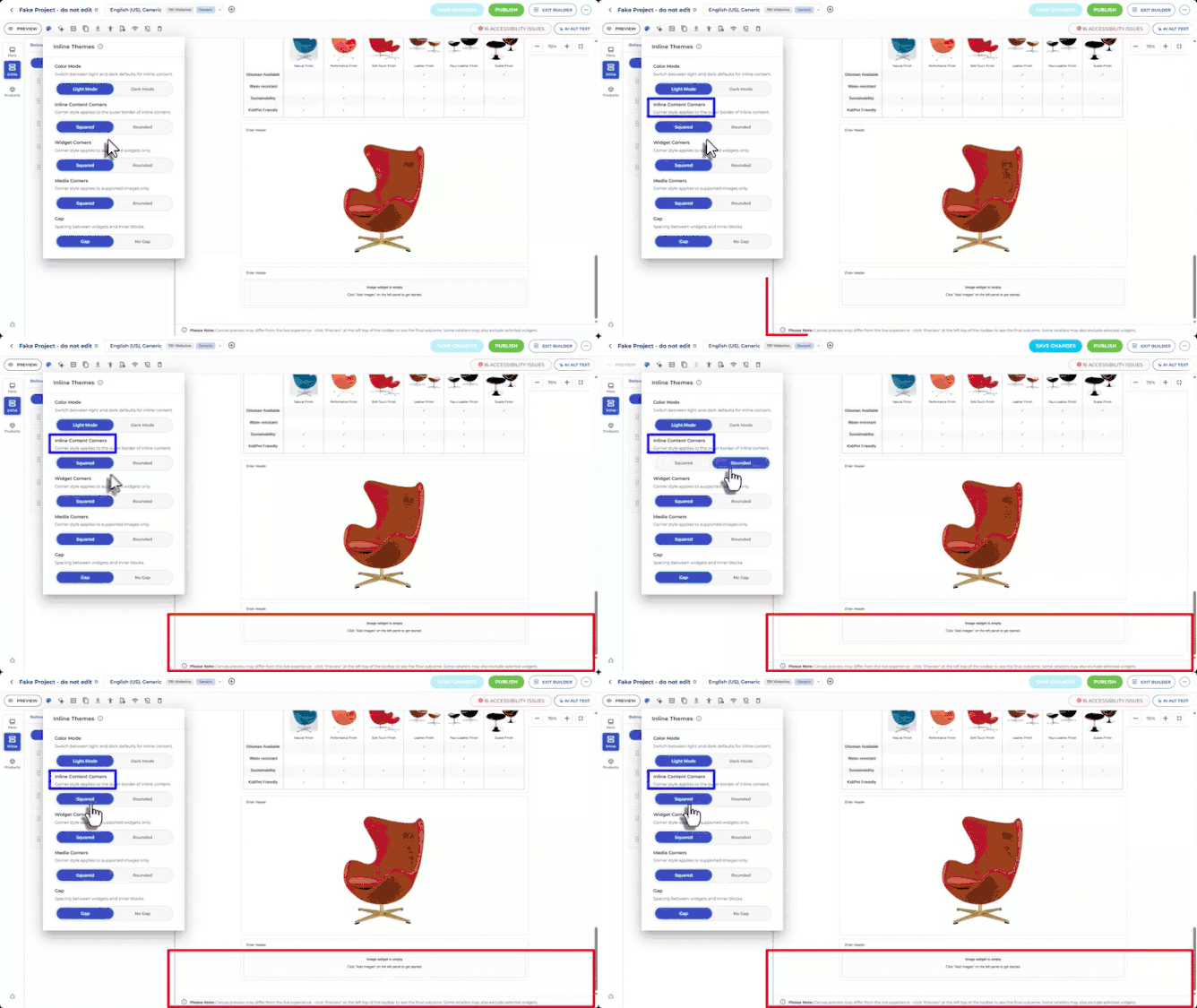
- Inline Themes: A new settings panel was added to the action bar. The first two options (Color Mode & Inline Content Corners) affect how your personal UI will look, and the remaining three settings (Widget Corners, Media Corners & Gap Settings) control the overall appearance of your content on the live page. Please note: Some changes are easier to notice when using a colored widget background instead of the default white background.

- Color Mode: Allows you to switch your background between Light and Dark mode
- In-Line Corners: Allow you to personalize the corners of the entire in-line content frame with either squared or rounded corners.
- Widget Corners: Let you switch between square and rounded widget edges.

- Media Corners: Let you do the same for your image assets.

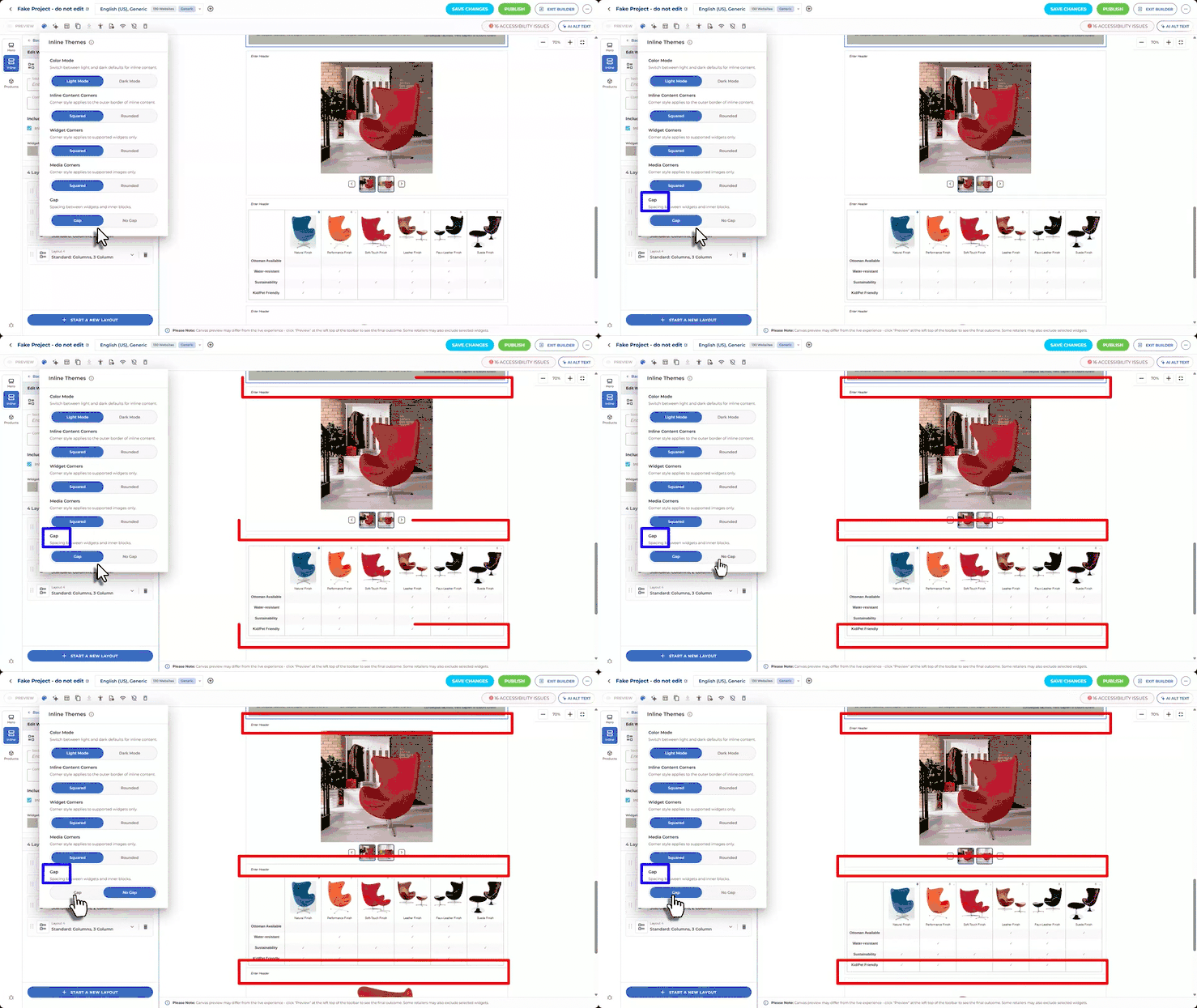
- Gap Settings: Control the spacing between widgets, helping you create a tighter layout with less white space. This allows certain widgets to appear to be directly stacked on top of each other with no padding. It is most obvious with Feature Sets.
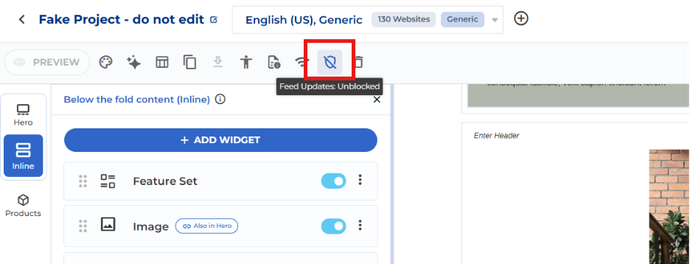
- Feed Updates: The new action is only available for select accounts that utilize our programmatic or batch feed content solutions to update their Enhanced Content. Please note: If you do not utilize these solutions for Enhanced Content management, you will not see this icon.
- The shield icon allows you to block feed updates from affecting the content you've manually built in a desired collection. This is so you can make manual edits, and they will not be overwritten by any future feed updates.
- Simply click the shield icon again if you ever want to unblock the feed updates.
-
Content Management: Building Enhanced Content behaves the same as it did in the original builder, but with a more user-friendly experience.


